Spending countless hours in front of a computer screen is the reality for many of us, whether for work, gaming, or creative pursuits. This prolonged screen time often leads to eye strain, fatigue, and a cluttered desk. Fortunately, an innovative solution is gaining popularity: the monitor light bar with touch dimming. This sleek accessory promises to transform your workspace by providing optimal lighting precisely where you need it, all controlled by a simple touch. Say goodbye to harsh glare and uncomfortable viewing, and welcome a new era of ergonomic and aesthetically pleasing illumination.
This comprehensive guide will explore the world of touch sensor monitor light bars, detailing their benefits, essential features to consider, and a comparison of top models, helping you choose the perfect one to enhance your productivity and protect your eyes.
Touch Sensor Monitor Light Bars: Overview and Benefits
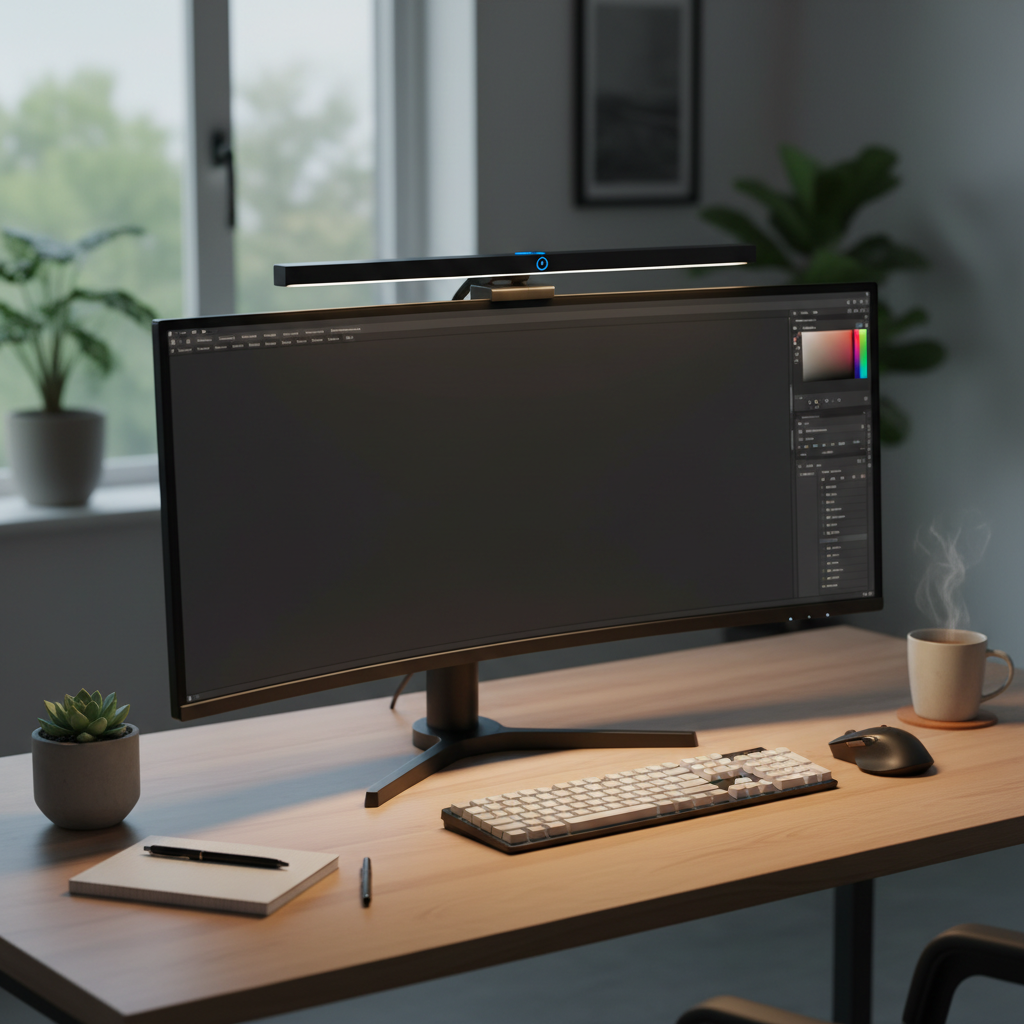
A touch sensor monitor light bar is a specialized lighting device designed to sit atop your computer monitor. Unlike traditional desk lamps that consume valuable space and often cast glare onto your screen, these light bars feature an asymmetrical optical design. This ingenious engineering directs light downwards onto your desk and keyboard, illuminating your workspace effectively without reflecting off your display. The integration of touch sensors provides an intuitive and modern way to control brightness and color temperature, making adjustments seamless and hassle-free.
These light bars are typically powered via USB, offering a clean setup with minimal cables. While some advanced models might feature wireless remotes or even motion sensors, the core appeal of touch sensor variants lies in their direct, on-device control, offering a quick and satisfying user experience.
Benefits of Using a Touch Sensor Monitor Light Bar
Adopting a touch sensor monitor light bar offers a multitude of advantages that go beyond just lighting your desk. These benefits contribute significantly to your comfort, productivity, and overall well-being.
- Convenience and Ease of Use: The primary draw of touch dimming is its sheer simplicity. With a light touch, you can instantly adjust brightness or color temperature, eliminating the need to fumble for physical buttons or external remotes. This direct control is intuitive and efficient, ensuring your lighting is always just right.
- Energy Efficiency: Most monitor light bars utilize LED technology, which is highly energy-efficient and boasts a long lifespan. This translates to lower power consumption compared to traditional lamps, making them an environmentally friendly and cost-effective lighting solution.
- Superior Eye Protection: One of the most critical benefits is the reduction of eye strain and fatigue. The asymmetrical light distribution prevents screen glare, a major culprit for discomfort. By providing balanced illumination for your workspace, light bars reduce the contrast between your bright screen and darker surroundings, allowing your eyes to work less strenuously. This helps mitigate issues like dry eyes and headaches associated with extended screen time.
- Space-Saving Design: Unlike bulky desk lamps, a monitor light bar neatly clips onto the top of your display, freeing up valuable desk real estate. This minimalist approach contributes to a cleaner, more organized, and aesthetically pleasing workspace, particularly beneficial for smaller desks or those striving for a clutter-free setup.
- Enhanced Ambiance and Productivity: The ability to finely tune brightness and color temperature allows you to create an ideal ambiance for any task. Warmer tones are perfect for relaxed browsing or late-night work, while cooler, brighter light enhances focus during intensive tasks. This personalized lighting environment can significantly boost concentration and overall productivity.
|
Our Picks for the Best Touch sensor night light in 2026
As an Amazon Associate I earn from qualifying purchases.
|
||
| Num | Product | Action |
|---|---|---|
| 1 | EverBrite Rechargeable Round Motion Sensor LED Night Light, Motion Activated LED Night Light with 3 Lighting Modes, Touch Control, 3 Color Temperatures & Dimmable, for Hallway, Bedroom, 2 Pack |

|
| 2 | Portable Baby Night Light, 3 Color Egg Lights for Nursery, 2400mAh, Small Rechargeable LED Lamp, Dimmable Touch Nightlight for Newborn, Toddler, Kids, Adults |
|
| 3 | JolyWell Night Light for Kids, Baby Night Light with 7 Colors Changing Mode & Stepless Dimming, Nursery Night Light BPA Free,Rechargeable Egg Night Light for Breastfeeding 1h Timer & Touch Control |
|
| 4 | RTSU Rechargeable Touch Light, DIY Stick Anywhere Led Night Light Touch Lamp Tap Light (Touch Sensor Switch, Stepless Dimmer, Last Setting Memory, Built-in Battery Powered, Warm White Light) |
|
| 5 | MediAcous Night Light for Kids, Baby Egg Light for Nursery, 7 Colors Changing & Stepless Dimming, Soft Silicone Touch Night Lamp with 1 Hour Timer, Rechargeable Nursery Night for Breastfeeding |
|
| 6 | RTSU Rechargeable Mini Touch Night Light, Wireless LED Lamp for Kids - Portable, Dimmable Nursery Lamp |
|
| 7 | UNIFUN Night Light, Touch Lamp for Bedrooms Living Room Portable Table Bedside Lamps with Rechargeable Internal Battery Dimmable 2800K-3100K Warm White Light & Color Changing RGB (Regular Size)… |
|
| 8 | Portable Baby Night Light, 3 Colors Egg Light for Nursery, Mini Bedside Table Lamp for Kids Adults, Touch Control & Eye Caring & Rechargeable Dimmable LED Lamp for Nursing, Boy, Girl, Toddler |
|
| 9 | G Keni Nursery Night Light for Baby, Portable LED Touch Night Lamp for Kids and Adult, Breastfeeding, Sleep Aid, USB Rechargeable Nursing Lamp, Bedside Dimmable Warm Night Light, Soft Eye Caring |
|
| 10 | Red Night Light for Sleep, 670nm Night Lamp with White Light 3000K-6500K & Timer, Portable Red Reading Light for Bedroom, Touch/Remote Control, 360° Illumination, Stepless Dimmable, Hangable |
|
Key Factors When Choosing a Touch Sensor Monitor Light Bar
When selecting the best touch sensor monitor light bar, a careful consideration of various features will ensure you find a product that perfectly aligns with your needs and preferences.
Material and Durability
The construction quality of a monitor light bar impacts both its lifespan and aesthetic. Many budget-friendly options use plastic, which is lightweight but might feel less premium. Higher-end models often incorporate aluminum alloy, offering superior durability, a more refined look, and better heat dissipation. Assess the build quality and stability of the mounting mechanism to ensure it securely attaches to your monitor without wobbling or damaging the screen.
Touch Sensor Technology and Sensitivity
The heart of a touch dimming light bar is its sensors. Look for responsive touch controls that register commands without excessive pressure. Some designs integrate ambient light sensors that automatically adjust brightness based on your room’s conditions, a feature that significantly enhances convenience and eye comfort. Test the sensitivity if possible, or read reviews specifically addressing the responsiveness and reliability of the touch interface to avoid frustration from unresponsive or overly sensitive controls.
Light Quality and Color Options
The quality and adjustability of the light are paramount.
- Brightness: Most good light bars offer stepless dimming, allowing for precise control over light intensity. A maximum brightness of at least 500 lux is generally recommended for adequate illumination.
- Color Temperature: Look for a wide range of color temperatures, typically measured in Kelvin (K). Options usually span from warm white (around 2700K) for relaxation, to neutral white (around 4000K-5000K) for general tasks, and cool white (up to 6500K or 8500K) for focused work. The ability to switch between these settings is crucial for adapting to different times of day and tasks.
- Asymmetric Design: Ensure the light bar features an asymmetrical optical design to prevent glare on your screen.
- CRI (Color Rendering Index): For creative professionals, a high CRI (e.g., Ra95+) indicates that the light accurately renders colors, which is essential for tasks like graphic design or photo editing.
Power Source and Efficiency
Most monitor light bars are USB-powered, drawing power from your computer’s USB port, a wall adapter, or a power bank. Check the USB type (USB-A, USB-C) and power requirements (e.g., 5V/3A) to ensure compatibility with your setup. LED technology inherently offers good energy efficiency, but checking specifications can help you understand power consumption if that’s a key concern. Ensure the cable length is sufficient for your desk arrangement.
Additional Features
Beyond basic lighting and touch control, some monitor light bars offer extra functionalities that can enhance your user experience:
- Timer Functions: A built-in timer, such as a 60-minute shutdown feature, can be useful for those who tend to forget to turn off their lights.
- Backlighting: Some premium models include a backlight component, which can further reduce eye strain by illuminating the wall behind your monitor, creating a more balanced ambient light.
- Motion Sensors: Advanced light bars, like some BenQ models, may incorporate motion detection to automatically turn on when you approach your desk, providing a seamless start to your work session.
- Compatibility: If you have a curved monitor, verify that the light bar’s clamping mechanism is compatible. Many brands now offer solutions specifically designed for curved screens.
Comparing Popular Touch Sensor Monitor Light Bars
While many light bars offer touch controls, specific models stand out for their features and performance. Here’s a general comparison to help you understand the landscape.
| Feature | Baseus Monitor Light Bar (Touch Control) | Quntis Monitor Light Bar (Touch/Remote Touch) | Generic Touch-Enabled Light Bar |
|---|---|---|---|
| Material | Plastic, good build for price | Often plastic, some premium options | Varies (Plastic to Aluminum) |
| Touch Controls | Intuitive, on-bar touch | On-bar touch, some models with remote touch | Standard on-bar touch |
| Light Output | Adjustable brightness & color temperature | Stepless dimming, wide CCT range | Basic to advanced adjustability |
| Power Source | USB-A powered | USB-A or USB-C powered | USB powered |
| Add’l Features | Asymmetric design, tool-free install | Auto-dimming, radar sensor (select models), high CRI (Ra95+) | Asymmetric design, often basic timer |
| Compatibility | Flat monitors | Flat and some curved monitors | Varies |
| Price (Approx.) | Budget-friendly | Mid-range to premium | Wide range |
“The right monitor light bar can be a game-changer for eye comfort and desk aesthetics. It’s about more than just light; it’s about creating a harmonious environment for focused work.” – Dr. Alex Chen, Ergonomics Specialist
Guide to Buying Your Ideal Touch Sensor Monitor Light Bar
Navigating the market for a monitor light bar can be daunting with so many options available. Follow these steps to make an informed decision and find the perfect match for your setup.
Identify Your Needs and Workspace
Before diving into product specifics, consider your personal requirements. What is the primary use for the light bar? Are you a gamer needing specific ambiance, a professional requiring focused, color-accurate lighting, or a casual user seeking basic eye comfort? Evaluate your workspace: Is your room generally dark or brightly lit? Do you have a flat or curved monitor, and what is its thickness? Understanding these factors will narrow down your choices considerably.
Research and Compare Products
Once you have a clear idea of your needs, begin your research. Read product reviews from reputable tech sites and customer testimonials. Pay close attention to feedback regarding the responsiveness of the touch controls, the quality of light output, and the durability of the build. Compare different models based on their features, specifications, and price points. Look for comparisons that highlight performance in various scenarios, such as preventing glare or supporting different monitor types.
Purchase from Reputable Sources
Always buy your monitor light bar from trusted retailers or directly from the manufacturer’s website. Reputable sources typically offer authentic products, reliable customer support, and clear warranty and return policies. This provides peace of mind and ensures you can address any issues that may arise after your purchase. Checking for official certifications or quality standards can also add a layer of trust.
Perform a Pre-Purchase Check (If Applicable)
If purchasing in-store or if you have the opportunity, inspect the product before committing.
- Check Material and Build: Feel the texture, test the sturdiness of the clip, and ensure there are no visible defects.
- Test Touch Sensors: Confirm the touch controls are responsive and intuitive.
- Evaluate Light Quality: If possible, test the brightness and color temperature adjustments to see if they meet your expectations.
- Verify Compatibility: Physically check if the light bar fits securely on your monitor without obstructing the screen or camera.
- Review Additional Features: If a timer or auto-dimming function is present, understand how it operates.
Conclusion
A touch sensor monitor light bar is a valuable addition to any modern workspace, offering a blend of convenience, ergonomic benefits, and aesthetic appeal. By providing glare-free, customizable illumination, these devices play a crucial role in reducing eye strain, optimizing desk space, and boosting productivity. The intuitive touch dimming controls make adjusting your lighting effortless, ensuring your environment is always perfectly lit for the task at hand.
Investing in a high-quality monitor light bar with touch dimming can significantly enhance your comfort and efficiency during long hours spent in front of a screen. Ready to upgrade your desk setup and give your eyes the relief they deserve? Which feature of touch dimming monitor light bars excites you the most for your personal setup?
Frequently Asked Questions
Are monitor light bars with touch dimming worth the investment?
Yes, for anyone spending significant time at a computer, a monitor light bar with touch dimming is a worthwhile investment. It significantly reduces eye strain, frees up desk space, and offers customizable lighting that can improve focus and comfort, leading to better long-term eye health and productivity.
How do touch sensors on light bars work?
Touch sensors on light bars typically use capacitive technology, detecting changes in electrical current when your finger makes contact. This allows for precise, button-free control over functions like turning the light on/off, adjusting brightness, and changing color temperature with a simple tap or swipe.
Can a monitor light bar work with a curved monitor?
Many newer monitor light bars are designed to be compatible with both flat and curved monitors. However, it’s crucial to check the product specifications for compatibility, especially regarding the monitor’s thickness and curvature, as some designs may be better suited for specific screen types.
What brightness and color temperature settings are best for eye comfort?
For general use, a neutral white color temperature (around 4000K-5000K) is often recommended for balanced illumination. Brightness should be adjustable to match your ambient environment and personal preference, avoiding overly bright or dim settings that can cause strain. Auto-dimming features help maintain optimal light levels throughout the day.
Do monitor light bars reduce blue light?
Monitor light bars primarily reduce eye strain by eliminating screen glare and balancing the light contrast between your screen and the surrounding workspace. While some models may offer specific “eye-care” modes that lean towards warmer color temperatures, they do not actively block blue light emitted from your monitor itself. Their benefit comes from creating a more comfortable overall visual environment.